Get started
This page gets you from first launch to a usable workspace: open tabs, name them, arrange panes, choose a shell, and find the settings that matter first.
Confirm language
On first launch, ButtonsCLI may ask which language to use. Choose the detected system language or pick a specific language. You can change this later in Settings under Advanced.
Existing installs should not see the first-run language prompt again after migration.
Take the first-run tour
New installs show a short guided tour after the first terminal opens. It highlights the preset buttons, left dock, terminal workspace, tab controls, and status bar so the main controls are easier to find.
You can skip it, finish it, or replay it later from Settings under Advanced > App Tour.
Open your first tabs
Tabs are the main way to separate work.
- Click + in the top bar.
- Choose the default shell or another detected shell.
- Double-click the tab name and rename it for the job.
- Repeat for another job, such as
server,tests,logs, orgit.
The + menu also includes custom shell profiles after you create them in Settings.
Arrange panes
Use panes when you need more than one terminal visible.
- Click the side-by-side layout button to show tabs left and right
- Click the stacked layout button to show tabs top and bottom
- Click the grid button to tile open tabs
- Click the collapse button to return to one active tab
Create the tabs first, then choose the layout. Layout buttons arrange existing tabs.
Use command preset buttons
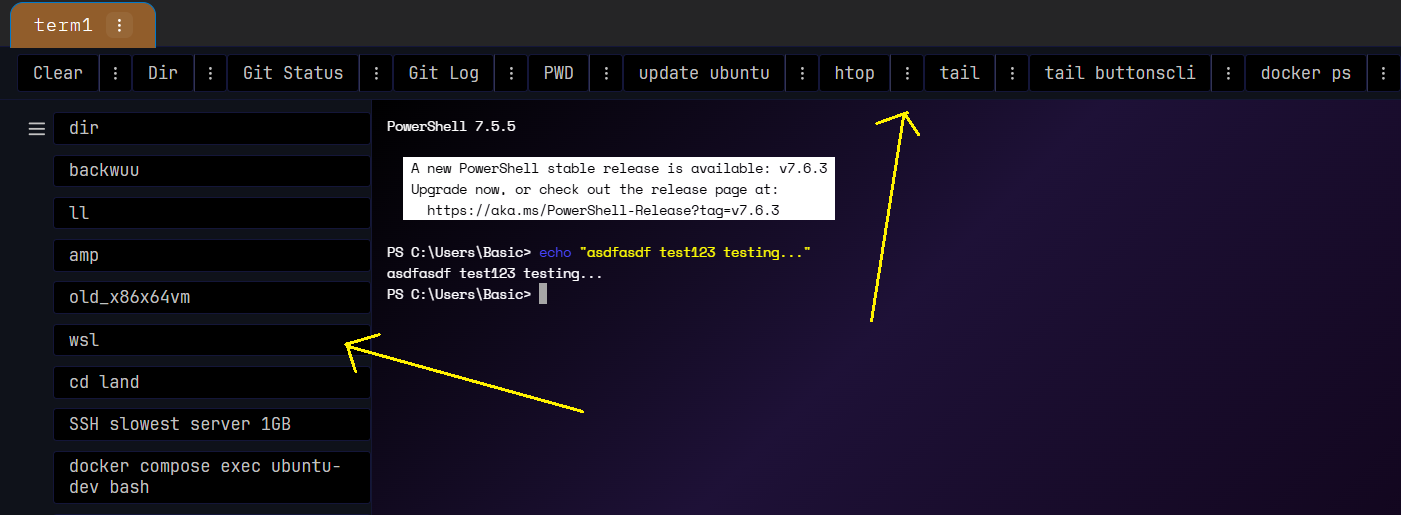
Preset buttons type saved commands into the active terminal. They are useful for commands you run repeatedly, such as checking the current directory, clearing output, or running Git checks.
Fresh installs include harmless echo examples so you can see how presets behave. Replace them with your own repeated commands when you are ready.
Some presets submit the command after typing. Others only type the text so you can review it before pressing Enter. There is a checkbox to enable this optionally when you create a new preset.
Choose a comfortable look
Open Settings to change the terminal’s look. Good first settings to check:
- Themes for built-in and saved themes, and if you scroll way down.. there is a vibe code themes section where you can literally type "make it look like halloween" and it will do it
- Terminal for colors, cursor, gradient, and ANSI palette
- Fonts for terminal font, UI font, and Google Fonts behavior
- Effects for noise, HSync, and Shader Lab
Most visual settings apply while Settings is open. Use Revert & Close if a change does not work for you.
Use AI Help any time you can't remember a command, it'll generate

Click AI Help in the status bar to open the detached AI window. Configure an OpenAI-compatible provider in Settings (or turn on Managed mode, let us handle it) before asking it.
AI Help can explain recent terminal output and propose terminal actions. Reviewed mode asks before sending commands. Full-permission modes should be used only when you are comfortable with the current terminal context.
Connect an external agent
If you use Codex CLI, Claude Code, Gemini CLI, or another local agent, click Agent Inst. in the status bar. ButtonsCLI copies instructions for the local control CLI so the agent can target named tabs, read recent output, and wait for terminal quiet.
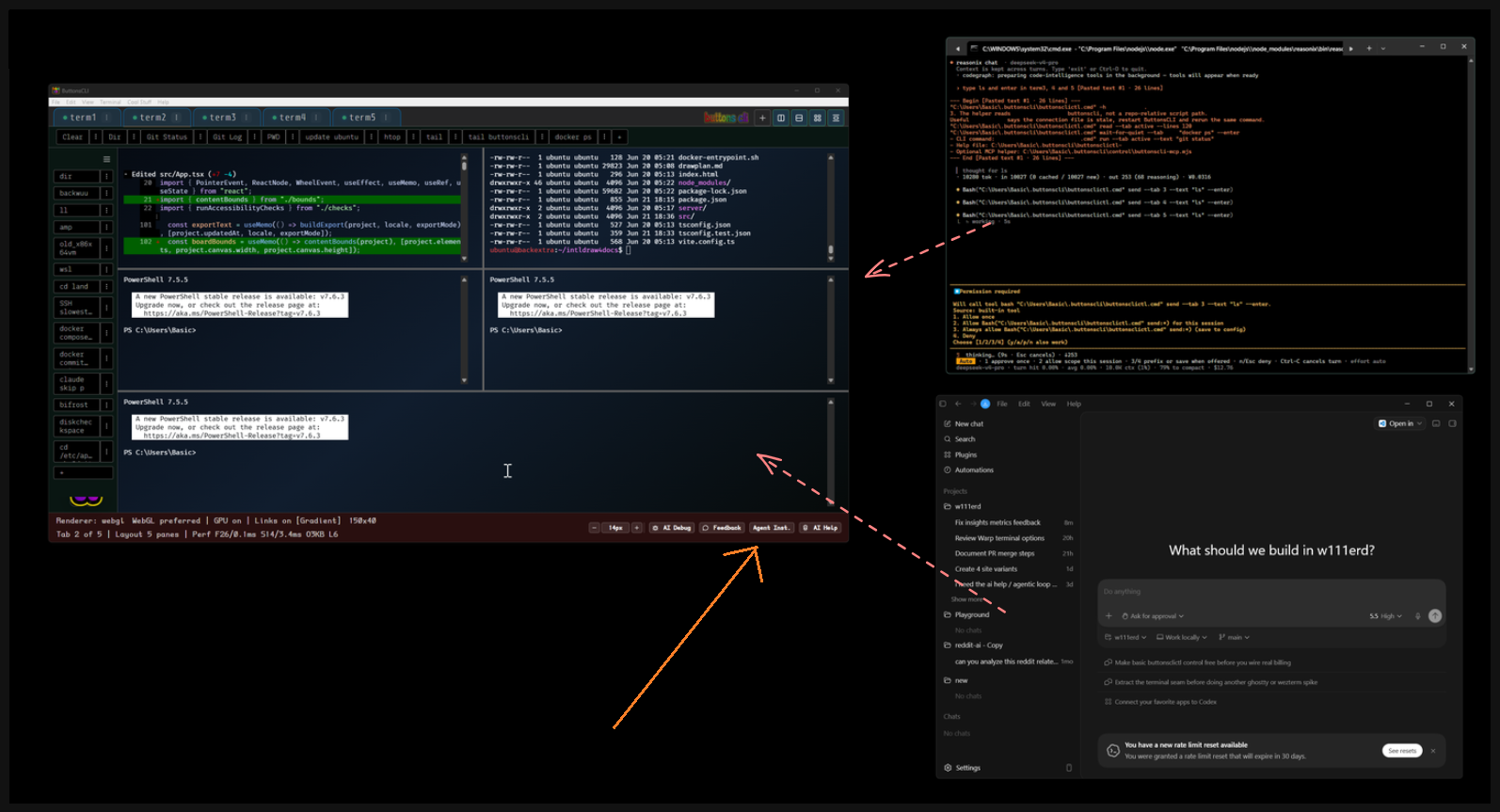
Automation uses a local loopback control surface. It does not require screen scraping.